Create and test with a sandbox company
When you create your developer profile, you automatically get a sandbox company.
A sandbox company includes sample data that you can use as a testing environment during development to see your code in action. You can also connect it to external testing tools such as Postman or Insomnia.
With your Intuit Enterprise Suite sandbox, you can test your app for either single-entity (SE) or multi-entity (ME) companies.
- Sign in to your developer account.
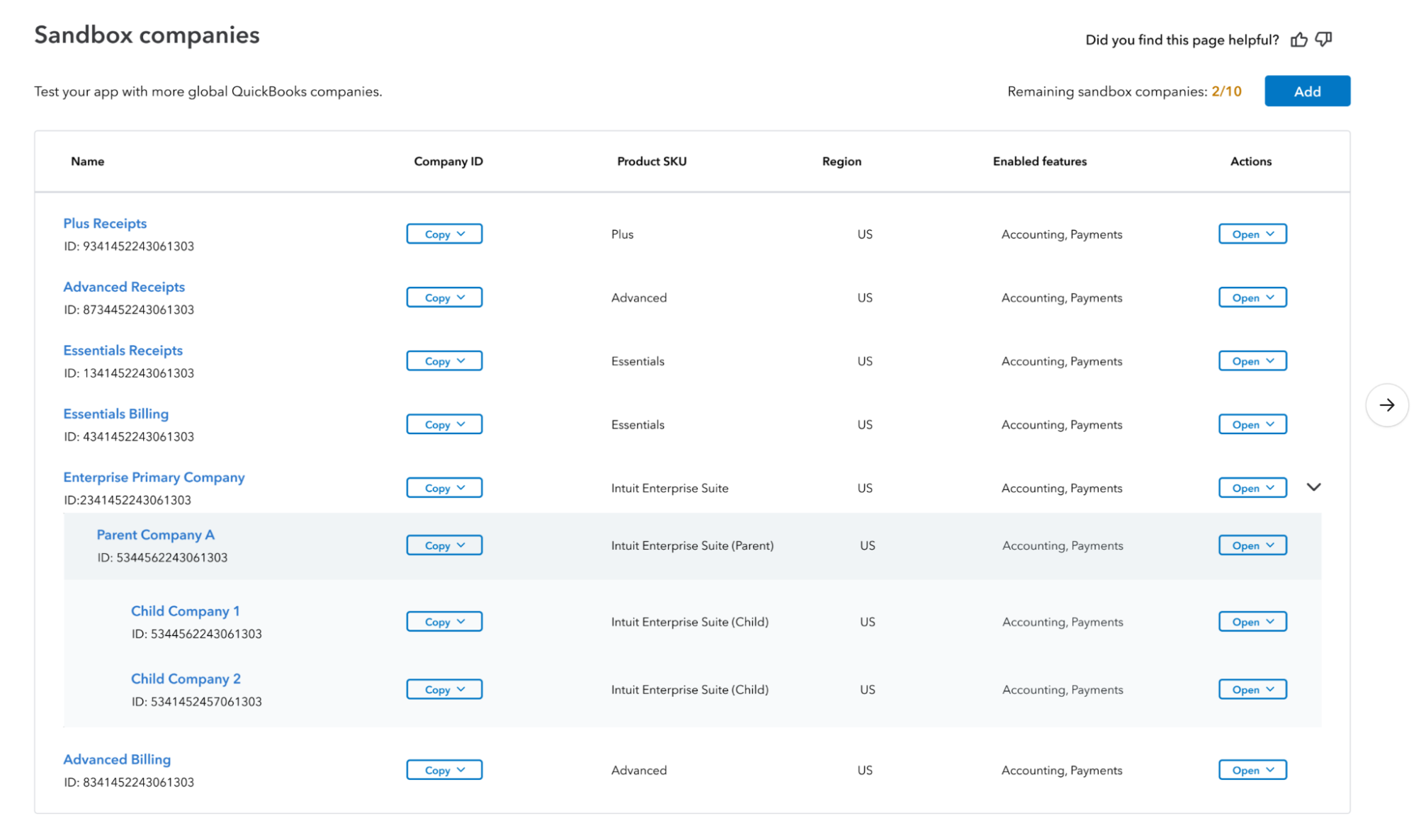
- Select My Hub > Sandboxes from the upper-right corner of the toolbar.
x
- Select Add, located on the right.
- Choose either Intuit Enterprise Suite - Single Entity or Intuit Enterprise Suite - Multi Entity.
- Select Create.
There are a few ways to use your sandbox company:
- Sandboxes automatically connect to our testing tools, such as the OAuth 2.0 Playground
- Connect them to third-party testing tools
Here’s what you’ll need to connect and use your sandbox company.
- Sign in to your developer account.
- Select your app.
- Select Keys and credentials from the left navigation pane.
- Select Development and turn on Show Credentials.
- Retrieve or copy the Client ID and Client Secret.
Use this base URL for sandbox companies: https://sandbox-quickbooks.api.intuit.com/v3
- Sign in to your developer account.
- Select the name of the sandbox company.
For an ME sandbox, you must connect to each entity/realm under an ME company and generate an OAuth token for each entity. Use the token of the respective entity/realm to push data to that particular entity.
You can delete all sample data and anything else you’ve entered since you started. This deletes all the data, but keeps the sandbox company.
- Sign in to your developer account.
- Find the sandbox company on the list.
- Select Clear data and reset from the button in the Action column.
You can also completely delete a sandbox company if you no longer need it. To delete the sandbox entirely, select Delete entire sandbox from the button in the Action column.
For a deeper dive, check out the sandbox FAQ. You can also connect with other developers on the Intuit Developer community forum.
If you need more help, or run into errors, reach out to our developer support team.